


Fill dates between dates with Power BI / Power Query
One of my most popular posts is one about recurring dates with offset in Power Query (url). It has thousands of hits, but one of the key follow up questions that people have after reading that is “How do I fill dates between dates?”
This is the post where I’ll cover that very same topic to show you exactly how you can use Power Query / Power BI to fill dates in the easiest fashion possible.
You can follow along by downloading the sample file from the button below.
Case 1: Fill continuous Dates between dates
Imagine that we have a table like the one below:
| Person | Start Date | End Date | Hours per day |
|---|---|---|---|
| Miguel | 26-Jun-19 | 09-Jul-19 | 7 |
| Bill | 22-Jun-19 | 08-Jul-19 | 8 |
| Ken | 20-Jun-19 | 05-Jul-19 | 10 |
| Rob | 21-Jun-19 | 30-Jun-19 | 8.5 |
What we want to create is a simple set of dates for that timeframe from the start date to the end date.
How do we fill the dates between those two dates with Power BI / Power Query?
It’s actually easier than you think. This technique is one that I commonly see my friend Ken Puls using when working with dates. See, you can transform those dates into a number and the create a list or sequence of numbers based on that start date and end date like this:
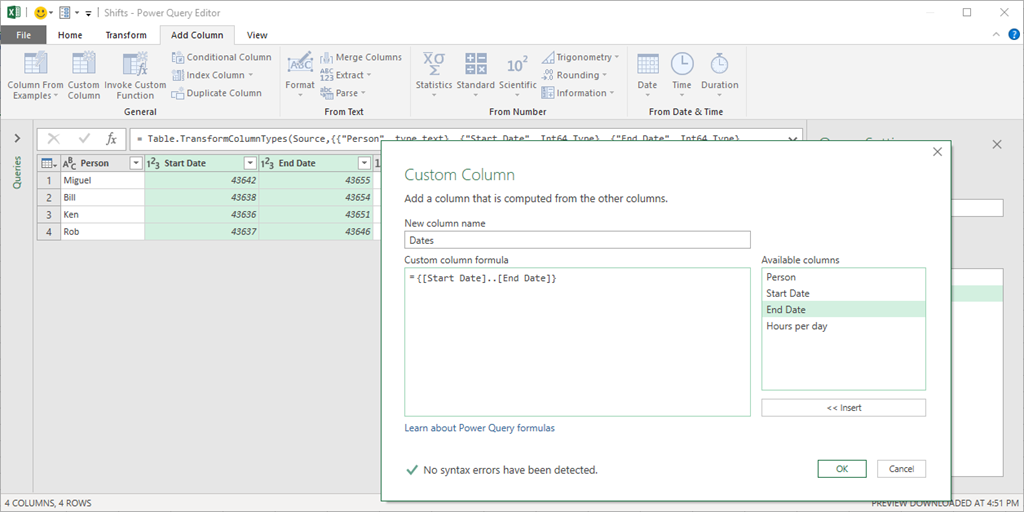
The key here is that list or sequence of numbers using this formula:
{[Start Date]..[End Date]}
I wish that it worked with dates, but it only works with numeric values, so that’s why we need to convert the dates into a number before creating our new custom column.
The result of that is going to be a new column with all of our dates inside a list.
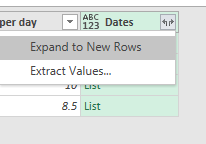
You can click on the icon that looks like two arrows going in opposite directions and do a “Expand to New Rows” operation:
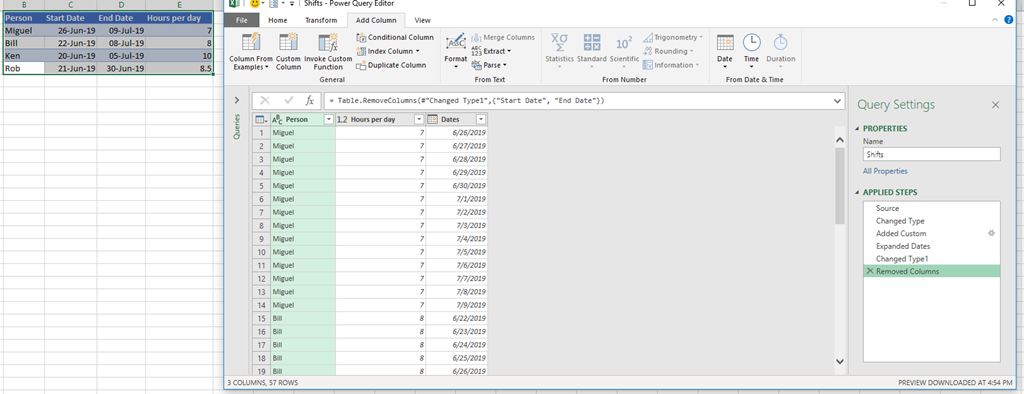
and then you can convert the new column into a date data type, remove the start and end date and that will give us the result that we’re looking for which is a simple way to fill in the dates between two dates.
Again, this is the easiest possible scenario and probably the most common one that you might find in the real world. If you need to fill in consecutive dates between two dates then this is the best way to make that happen.
Case 2: Fill only x amount of days
in the previous case we figured out how fill dates between two specific dates. We had a start and an end date, but what if you only have the start date and you want to figure out a specific set of dates from that start date?
In this case we have a table that looks like this:
| Person | Start Date | Valid for |
|---|---|---|
| Miguel | 9-Jul-19 | 7 |
| Bill | 2-Jul-19 | 1 |
| Ken | 4-Jul-19 | 3 |
| Rob | 8-Jul-19 | 90 |
and the situation is quite simple. To the Start Date, we want to add the amount of days from the “Valid for” column.
To give you more context, imagine that this is a table that shows us the access that each person will have during a timeframe and we want to see how many of us will have a certain access during a specific date or set of dates. The overall scenario is more complex than that as it also has it could have to do with other fields, but I’ve simplified the scenario just for demonstration purposes.
The next step is just to add a custom column. No need to convert the columns into numbers this time – we actually need this column as date this time and add the following formula:

List.Dates([Start Date], [#"Valid for "], Duration.From(1))
I’m using a function called List.Dates which takes an initial date and creates a list of dates from it.
- The first parameter of this function is the starting date
- The second parameter of this function is the amount of dates that this function should return from the starting date
- The third parameter is the amount of days between dates and it has to be passed as a Duration data type. In my case I’m saying that I want a new daily date. That’s why I use Duration.From(1) but you could also use #duration(1,0,0,0)
After expanding the new column this is how it looks like:

One crucial and REALLY important thing to mention is that the “counting” of the days starts from the 0 hours of the start date. This means that it is including the start date as the first date and that’s why the initial list of dates for Miguel in that table only goes until the 15 of July.
Case 3: Fill specific day of the week between dates
In the post that I previously mentioned on "Recurring dates”, I basically play with the last parameter of the List.Dates function to get only dates that will have a “gap” of x amount of days between them which I define using the last parameter of this List.Dates function with the duration.
This is a revisit to that specific case and here’s the initial table:
| Initial Appointment | Patient | Follow ups needed | Frequency (every x days) |
|---|---|---|---|
| 11-Jan-18 | Audie Livengood | 3 | 14 |
| 28-Oct-17 | Curt Gatz | 2 | 7 |
The objective with this one is to come up with the Follow up dates for an appointment. Imagine that we went to the hospital and the Doctor says that she wants to see us in 2 weeks from that appointment or that she wants to see us every 2 weeks for the next two months or so.
We can use the same formula that I have in my previous post. It’s the best way to work:
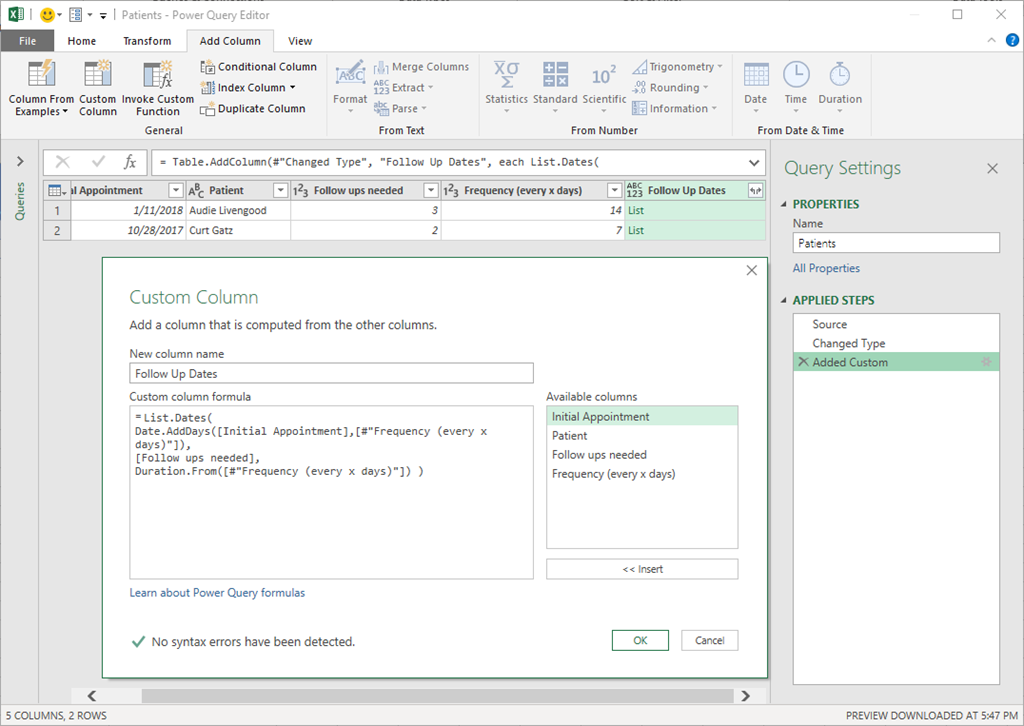
and after you expand the new column and set the correct data type for this new column you get this:
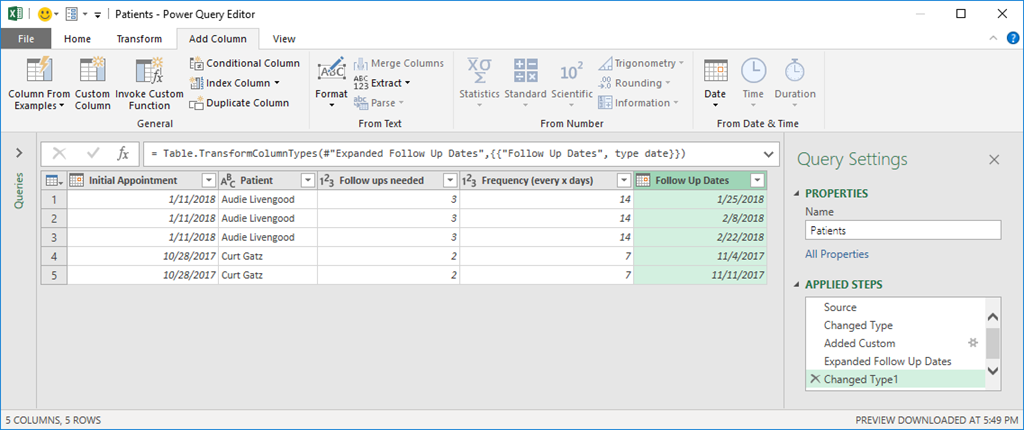
In this case we basically played around with the List.Dates function to fit it to our needs. I highly recommend that you read the original article if you want a more in-depth look at that specific scenario.
Other cases not covered
You might find other cases where you need to do something quite specific like find the 5th or last Friday within a given set of dates or find the second to last working weekend of a season.
These are usually highly specific scenarios that I’d personally tackle by creating a custom function, so if you’re ever in a situation different to the ones listed here, please let me know in the comments. I’d love to know about these other scenarios and see if we could update the case list from this post.
Dealing with Date and Time
So far we’ve been dealing with nothing but dates, but what about datetime values?
For that we can’t create a sequence of numbers since the sequence of numbers only works with integers and the List.Dates function only works with Dates, so what can we use?
For datetime fields we can use a function called List.DateTimes
Let’s look at this example:
| DateTime | Total Alarms | Alarm every (minutes) |
|---|---|---|
| 7/9/19 8:00 AM | 20 | 30 |
| 7/20/19 10:30 AM | 10 | 5 |
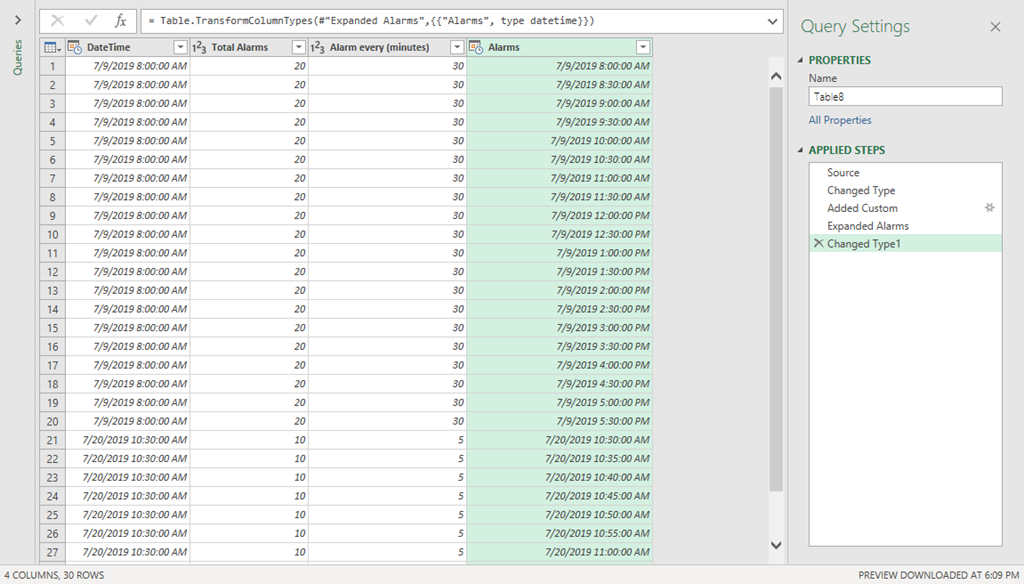
The goal here is simple: we need to come up with the exact date and time when these alarms should go off. We have a datetime that gives us when the alarm should go off the first time, then for how many times it has to go off (Total Alarms column) and then how often should it sound in minutes in that Alarm every (minutes) column.
Load that data to the Power Query window and make sure that your column is of the datetime data type.
Then we can create a custom column using this formula:
List.DateTimes([DateTime],[Total Alarms], #duration(0,0,[#"Alarm every (minutes)"],0) )
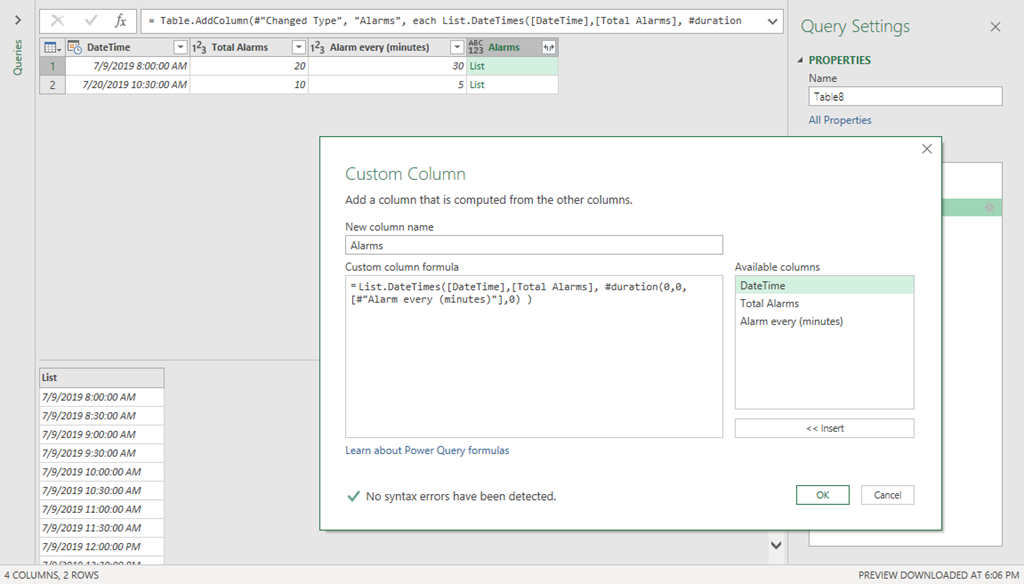
Note how the function looks similar too the List.Date function and it is exactly the same, except that the first parameter needs to be a datetime value instead of a date value.
The really important takeaway here is how the #duration part works and this is what you need to understand:
- #duration has 4 arguments and each of them are integer values
- #duration(days, hours, minutes, seconds)
After we expand the column, this is how our table looks like:
Other considerations for Datetime
In some cases, you don’t need to use a datetime but rather just use the time portion and work that way as a duration straight from the Power Query interface, but if you happen to need to use a datetime value, then List.DateTimes would be your best way and don’t forget about the power of the #duration keyword.


